
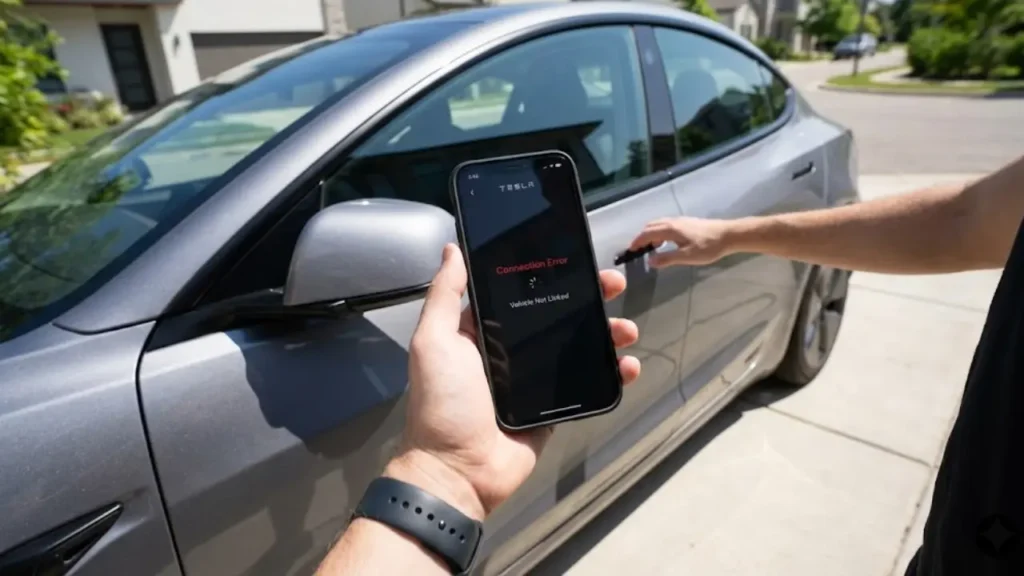
You just bought a pre-owned Model 3 or Model Y. You are sitting in the driver’s seat, excited to drive, but there is one major problem: The Tesla App still thinks the car belongs to someone else.
You own the metal, glass, and tires, but digitally, you are locked out. You cannot use the phone key, check the charge status, or summon the vehicle. It feels like you are driving a “ghost car.”
If you are frustrated because the **Tesla ownership transfer not working**, you are not alone. Whether you bought from a private seller, a used car dealer, or a third party like CarMax, the “digital handover” is often the hardest part of the process.
The transfer process depends entirely on how you bought the car. There are two timelines:
- The Fast Way (Private Sale): If the previous owner clicks “Remove Vehicle” in their Tesla App, the transfer is instant.
- The Slow Way (Dealerships): If you bought from a dealer, you must upload your documents (Bill of Sale + ID) to the Tesla App yourself. This triggers a manual review which takes 3 to 5 business days.
👉 Pro Tip: Always use the Tesla Mobile App for transfers, not the website. The web portal is often slower and buggy.
The “Ghost Car” Problem
Why is this so difficult? Unlike a Toyota or Ford, a Tesla is a connected device. The car is permanently linked to a “Master Account.”
Until the previous link is severed, Tesla’s servers will reject your request to add the vehicle. This is a security feature designed to prevent thieves from stealing a car and simply “claiming” it on the app.
However, for legitimate buyers, this security feature often turns into a headache. The solution depends on whether you can contact the seller or not.
Scenario A: You Can Contact the Seller (The 3-Minute Fix)
If you bought the car from a private owner and they are standing right next to you (or responding to texts), you are lucky. This is the only way to get the transfer done instantly.
Many sellers don’t know they have to “release” the car. They assume handing over the key card is enough. It isn’t.
The Seller’s Steps:
Ask the previous owner to do this on their phone right now:
- Open the Tesla App (do not use the website).
- Tap the profile icon in the top-right corner.
- Select “Add / Remove Products”.
- Select the car they sold you and tap “Remove”.
Once they confirm, the VIN is released from Tesla’s database immediately. You can then log into your app, click “Add Product,” and the car should appear within minutes.
This is the #1 reason transfers fail. Performing a “Factory Reset” on the car screen does NOT remove ownership.
A Factory Reset only wipes personal settings (Nav history, Spotify login). It does not break the link between the VIN and the owner’s Tesla Account. The seller must use the app to remove the car.
App Not Syncing After Transfer?
Sometimes, even after the seller removes the car, your app might spin indefinitely or show a connection error. This is usually a temporary software glitch as the car switches “Master” accounts.
The Fix: You need to force the car to reconnect to the LTE network and refresh its credentials.
The fastest way to do this is by rebooting the car’s computer. If you are unsure how to do this safely while parked, follow our step-by-step guide on How to Restart Your Tesla Screen (Soft Reset). This simple trick often forces the app to recognize the new owner instantly.
Scenario B: Buying from a Dealership (The Manual Way)
If you bought your Tesla from a third-party dealer (like CarMax, Carvana, or a local lot), the seller cannot “transfer” the car to you because they never had the app access in the first place.
In this case, you must initiate a Claim of Ownership through the Tesla App. Be warned: This is not instant. It requires a manual review by a human at Tesla HQ.
The “Claim” Process (Step-by-Step):
- Create Account: Download the Tesla App and create your account.
- Add Product: Tap the menu and select “Add Product” > “Vehicle”.
- Scan VIN: The app will ask you to scan the VIN (located on the driver’s side door jamb or the windshield).
- Upload Documents: You must upload a clear photo of your Driver’s License AND the Bill of Sale (or Temporary Registration/Title).
To prove you are physically inside the car, the App might ask you to rename your vehicle to a specific 3-letter code (e.g., “AB3”).
Go to Controls > Software > Name Your Vehicle on the car’s screen and type in the code. This proves possession and speeds up the review process.
Why is my request getting rejected?
Tesla is extremely strict about document clarity. Your transfer will be rejected if:
- The name on the Bill of Sale does not match your Tesla Account name exactly.
- The photo of the document is blurry or edges are cut off.
- You uploaded a “Purchase Agreement” instead of a signed “Bill of Sale.”
For a full list of acceptable documents, check the official Tesla Account Support Page.
While You Wait… Check the Car
Since the manual transfer takes 3 to 5 business days, use this time to inspect your new “Used” Tesla thoroughly. Dealerships often miss EV-specific issues.
Does the heat pump sound loud? Are the door handles sticking? Read our comprehensive guide on Tesla Model 3 Common Problems & Reliability (2026) to know exactly what to look for before your warranty expires.
The Final Step: “Digital Detailing”
Once the car finally appears in your app, congratulations! You are now the official owner. But before you drive off, you need to scrub the previous owner’s digital footprint.
Go to the Navigation menu on the screen. Do you see “Home” or “Work” addresses saved? Delete them. Check the “Driver Profiles”—if you see “Mike” or “Sarah,” wipe them out.
Think of this like detailing the car. Speaking of detailing, now that the software is clean, you should give the exterior a proper wash without damaging the sensors. Make sure you read our guide on How to Use Tesla Car Wash Mode Correctly to avoid flooding the charge port or breaking wipers.
Verdict: Patience is Key
If your Tesla ownership transfer is not working immediately, do not panic. The system is designed to be slow for security reasons (to prevent theft).
If you bought privately, call the seller—that is the only instant fix. If you bought from a dealer, upload clear documents and wait out the 3-5 day review period. The “Ghost Car” phase is temporary.
Frequently Asked Questions
How long does Tesla ownership transfer take?
If initiated by the seller via the app, it is instant (under 5 minutes). If you (the buyer) upload documents for a manual review, it typically takes 3 to 5 business days.
Can I Supercharge before transfer is complete?
Technically, yes. If the previous owner hasn’t removed their card, they will be billed (which is unethical). If the car is in limbo, Supercharging might be disabled until you add a payment method in your app once access is granted.
Does a factory reset transfer ownership?
No. A factory reset only wipes local data (navigation, music logins). It does not remove the vehicle from the previous owner’s Tesla Account. Only the “Remove Product” feature in the app does that.
⚠️ Disclaimer:
This guide is for informational purposes only. GreenMountMotors is not affiliated with Tesla, Inc.
Transfer policies and app interfaces can change with software updates. Always refer to the official Tesla Support page for the latest requirements regarding vehicle ownership transfers.