
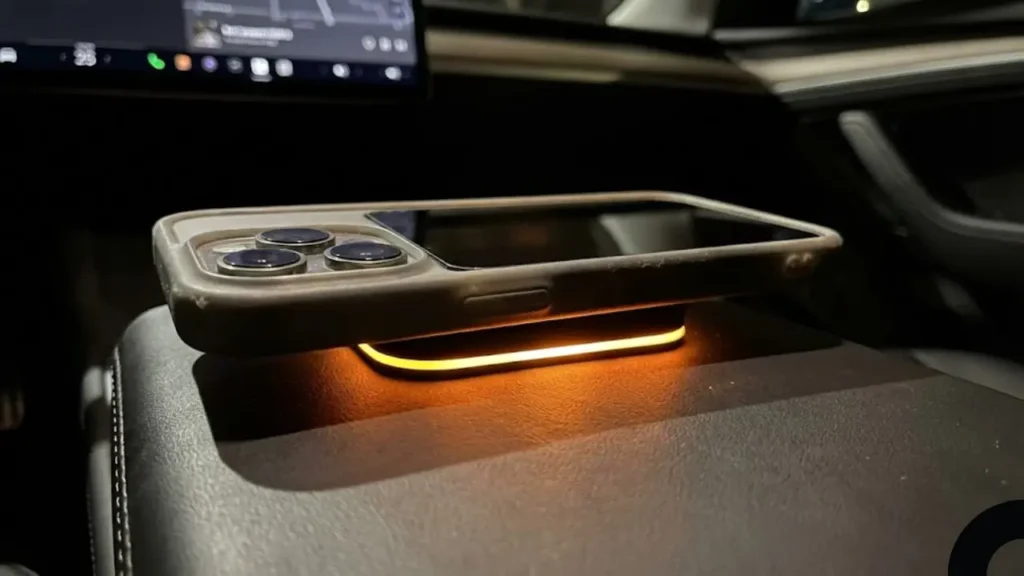
It is one of the most annoying moments for a Tesla driver. You drop your phone onto the charging pad, expecting to see the green lightning bolt icon, but instead, you get a blinking amber light. Your phone isn’t charging, you are losing range, and you are left wondering if your car’s electronics are failing.
Before you schedule a service appointment, take a deep breath. In 90% of cases, the charger is working perfectly fine. The issue is almost always a physical alignment problem caused by modern phone designs or cases.
Unlike a solid red light (which indicates hardware failure), a Tesla wireless charger flashing orange meaning is simple: “I detect a phone, but I cannot lock onto the coil.” The system is paused to prevent overheating.
The “Air Gap” Problem (Camera Bumps)
In 2026, smartphones like the iPhone 17 Pro Max and Samsung S26 Ultra have massive camera arrays. While great for photos, they are terrible for Tesla wireless charger blinking amber errors.
Tesla’s Qi charging coils are flat. When you place a phone with a huge camera bump on the pad, the lenses lift the top of the phone up, creating an “Air Gap” of 3-5mm. This prevents the phone’s back from sitting flush against the charger, breaking the magnetic field.
If the car tries to push power across this gap, it generates excess heat instead of charge. The system detects this inefficiency and cuts the power—triggering the amber blink.
Don’t remove your case yet. Simply rotate your phone upside down (charging port facing up). This moves the camera bump to the bottom of the pad where there are no coils, allowing the flat back of the phone to make better contact.
The Case Audit: Is Your Cover Blocking Power?
If flipping the phone didn’t work, your case material might be the issue. If you are struggling with a Tesla Model Y wireless charger not working with case, check if you are using one of these “signal killers”:
-
✖
Metal / Kickstand Cases: Metal blocks induction completely. If your case has a magnetic ring stand or aluminum backing, it will never charge.
-
✖
Thick Wallet Cases: The charging signal can only travel about 4-5mm. A leather case stuffed with 3 credit cards creates too much distance.
-
✖
Non-MagSafe Rings: PopSockets or ring holders on the back push the phone too far away from the surface.
If you have verified that your case isn’t the problem and the phone is sitting flat, but the light is still blinking, you might have accidentally triggered the car’s “Foreign Object Detection” safety protocol. We will check for hidden obstructions in the next section.
The Invisible Enemy: Foreign Object Detection (FOD)
If your phone case is thin and the alignment is perfect, the blinking amber light is likely a safety warning. The charger thinks there is metal on the pad that isn’t a phone.
This is called Model 3 wireless charger foreign object detection. If the charger pushes energy into a random piece of metal (like a coin or key), that metal will heat up rapidly—potentially melting your center console or starting a fire.
Do you keep an RFID access card or credit card in your phone case? Remove it immediately. The wireless charger can “fry” the magnetic strip or chip inside the card.
According to Apple Support, placing magnetic items between the phone and charger can reduce performance or damage magnetic strips.
Thermal Throttling: Is Your Phone Too Hot?
Wireless charging generates heat. If you are running GPS navigation, streaming music, and charging simultaneously on a sunny day, your phone will overheat.
When your phone’s internal temperature hits a safety limit, it tells the Tesla charger to stop sending power. The charger responds by blinking amber (or sometimes stopping the light entirely). This isn’t a glitch; it is Tesla wireless charger overheating iPhone protection in action.
The Fix: Hold the phone in front of the A/C vent for 60 seconds. Once it cools down, place it back on the pad. If the amber light turns green, the issue was just heat.
The Software Glitch: When the Car Gets Confused
Sometimes, the pad’s controller simply “hangs,” just like a Wi-Fi router that needs a reboot. If you have ruled out cases, obstructions, and heat, the car’s software might be the culprit.
You don’t need to visit a service center yet. Try performing a standard “Two-Button Reset” (holding both scroll wheels). This reboots the Media Control Unit (MCU) which manages the USB and charging modules.
For a safe step-by-step walkthrough on how to do this while parked, check our Tesla Black Screen Restart Guide.
If the reset didn’t work and your phone is still refusing to charge, the issue might be related to the car’s power distribution—especially if you are using a USB hub or splitter. We will investigate hardware conflicts in the next section.
The USB Hub Problem (Voltage Drop)
In older Model 3 and Model Y vehicles (pre-2021 console refresh), many owners installed aftermarket USB hubs to get more ports. While convenient, these hubs often split the power too thinly.
If you are facing Tesla USB-C hub charging issues, the wireless pad might not be receiving the steady 9V or 12V required to induce a charge. The pad tries to start, detects low voltage, and blinks amber to protect itself.
Unplug any USB drives, game controllers, or SSDs connected to the center console ports. If the wireless charger starts working again, your USB hub is overloading the circuit.
The “Power Cycle” Trick (Using Sentry Mode)
Sometimes, the USB controller just needs a nap. If Sentry Mode is always ON, the car’s accessories never fully shut down (sleep). This can cause software bugs to accumulate in the charging module.
How to Force a Reset:
- Turn off Sentry Mode.
- Exit the car and lock it.
- Wait 30 minutes (let the car sleep).
- Return and test the charger.
If you keep Sentry Mode active 24/7, it puts a constant strain on the electrical system. To learn how to manage this power consumption effectively, read our Tesla Sentry Mode Guide.
Amber vs. Red Light: Know the Difference
It is crucial not to confuse the warning signals. Understanding the difference between Tesla phone charger blinking amber vs red can save you a trip to the service center.
Meaning: Pause.
“I see the phone, but something (Alignment/Heat/Metal) is blocking me.”
Meaning: Failure.
“Hardware Malfunction. The pad itself is broken or disconnected.”
If the wireless charger is glitching AND your screen feels sluggish or USB ports are dead, your low-voltage battery might be failing. When the 12V battery is weak, the car cuts power to “non-essential” items first. Check the replacement costs here: Tesla Battery Replacement Cost Guide.
If you have checked the alignment, removed the case, cooled the phone, and rebooted the car, but the amber light persists, you might need a hardware replacement. We will wrap up with the final verdict and FAQs in the next section.
Final Verdict: DIY Fix or Service Center?
In our experience, 95% of “Blinking Amber” issues are caused by the phone’s size or case, not the car itself. Before you pay for a diagnostic fee, follow this final decision tree.
Summary & Next Steps
- If the phone charges upside down: The issue is your camera bump (Air Gap). Buy a slimmer case or a “MagSafe” charging mount.
- If the light turns green after cooling: The issue was Thermal Throttling. This is normal.
- If the light stays AMBER with no case: Inspect for hidden debris or coins.
- If the light is SOLID RED: The charging pad hardware has failed.
If you have a solid red light or the pad refuses to work with any phone (even without a case), schedule an appointment via the Tesla App Service Menu under “Interior Electronics”.
Frequently Asked Questions
1. Why is my Tesla wireless charger blinking amber fast vs. slow?A slow pulse often indicates the charger is in “standby” or trying to handshake with the phone. A fast blinking amber light typically means an immediate error: either a foreign object (coin/metal) is detected, or the phone is misaligned.
2. Does the Tesla charger work with thick OtterBox cases?Rarely. Most rugged cases like OtterBox Defender are too thick (over 5mm) for the Qi signal to penetrate. You will likely need a “MagSafe Compatible” case that has built-in magnets to bridge the gap.
3. Can I charge AirPods on the Tesla pad?Yes, but only if you have the “Wireless Charging Case” for your AirPods. However, alignment is tricky because the coils in the Tesla pad are large and positioned for phones. You might need to slide the AirPods case around to find the “sweet spot.”
4. Is there a way to turn off the wireless charger?There is no software toggle to disable the wireless pad specifically. It is hardwired to the car’s power bus. If you want to stop charging to cool your phone, simply flip the phone screen-down.