
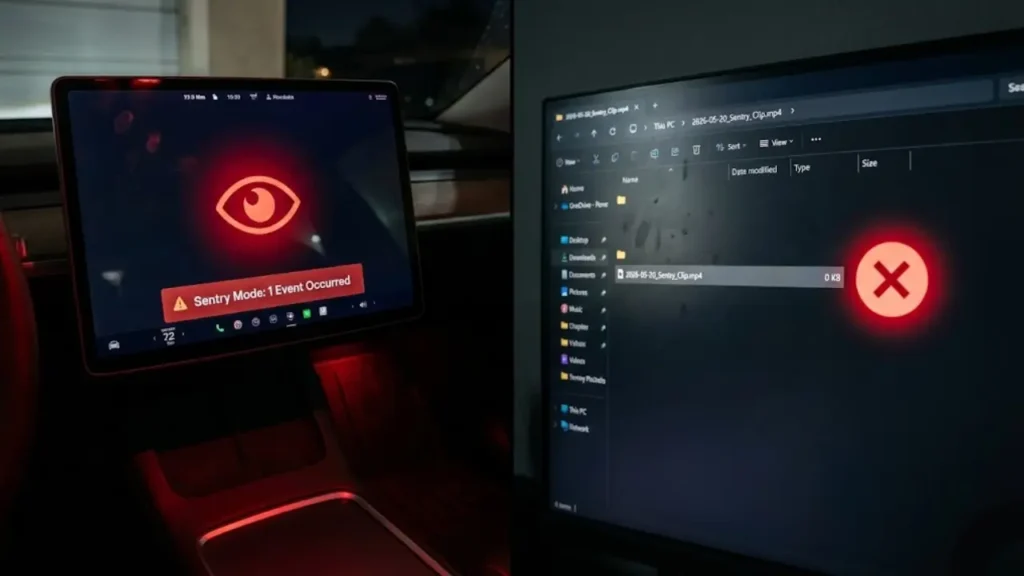
It is a sinking feeling every Tesla owner knows. You return to your car, see a notification saying “Sentry Mode: 1 Event Occurred,” and you immediately inspect your car for damage. You rush to the touchscreen to view the footage, expecting to see the culprit. But when you tap the clip, nothing happens.
You might see a Tesla Dashcam Viewer black screen, a spinning loading circle that never ends, or a file with a grey “X” icon. Before you assume the camera missed the action or your USB drive is broken, stop right there.
Formatting the drive will erase everything permanently. In 80% of cases, the video file exists and is safe—the car just can’t play it.
The “Ghost Event”: Why the Viewer Fails
The Tesla Dashcam Viewer app is convenient, but it is notoriously buggy. When you try to watch a clip inside the car, the vehicle’s computer (MCU) has to simultaneously retrieve and render four high-definition video streams (Front, Back, Left, Right) from a USB drive.
If the car’s computer is busy—perhaps updating maps, calculating a navigation route, or just waking up from sleep—it often fails to load the video player, resulting in the Tesla Sentry Mode event occurred but no video error.
If the timeline moves but the screen stays black, the video file is likely fine. The playback software has simply crashed.
Step 1: The Screen Refresh (Soft Reset)
Before pulling out the USB drive, try to force the video player to reload. The quickest way to do this is by rebooting the infotainment system. This clears the temporary cache that might be freezing the viewer.
Perform a standard scroll-wheel reset. If you are unsure how to do this safely while parked, follow our step-by-step Tesla Black Screen Restart Guide. Once the screen comes back on, try playing the clip again.
Step 2: The “PC Check” (The Real Test)
If the screen reset didn’t work, do not assume the footage is lost. Tesla’s in-car viewer is restrictive. To find the truth, you must bypass the car entirely.
Unplug the USB drive from the glovebox and plug it into a computer (PC or Mac). Tesla organizes files in a specific way that can be confusing. According to the official Tesla Owner’s Manual, footage is split into “RecentClips” (last 60 minutes) and “SavedClips” (triggered events). In the next section, we will show you exactly where to look for your “missing” video and what to do if the file size is 0KB.
The “0 KB” Nightmare: Is the Video Gone?
You plugged the drive into your PC, navigated to TeslaCam > SavedClips, and found the folder matching the event time. But when you look at the file size, your heart sinks. It says 0 KB (Zero Bytes).
A Tesla Sentry clip 0 bytes error means the file “header” was created, but no video data was actually written to the drive. Technically, the footage was never saved. This is almost always a hardware failure, not a software glitch.
Why Does This Happen? (The 4-Stream Problem)
Most owners do not realize how demanding Sentry Mode actually is. When an event is triggered, your Tesla isn’t just writing one video file. It is simultaneously writing four high-definition video streams to the USB drive at once.
If you are using a cheap promotional USB stick or an old SD card, it likely has a slow “Write Speed.” The car tries to push 30MB of data per second into the drive. If the drive can’t swallow the data fast enough, the buffer overflows, the write operation fails, and you are left with a corrupted 0 KB file.
The “Grey X” & Power Failure
Sometimes, the drive is fast enough, but the connection cuts out mid-recording. This results in a “Grey X” icon in the viewer. This often happens due to a sudden voltage drop in the USB ports.
If your car’s 12V battery is getting old or weak, it may struggle to maintain steady voltage to the USB hub during high-load events (like when the alarm triggers). If your USB ports frequently disconnect, it might be an early warning sign of a dying low-voltage battery. Check the signs here: Tesla Battery Replacement Cost & Symptoms.
If the files are missing or 0KB, they are unrecoverable. However, if the files have a size (e.g., 30MB) but just won’t play on your PC, they are Corrupted but Recoverable. In the next section, we will show you how to force these files to play using specialized software.
The “Unplayable” File: It Has Size, But Won’t Play
Scenario: You found the file in the “SavedClips” folder. It is not 0KB—it’s a healthy 35MB. But when you double-click it, Windows Media Player gives you an error, or you see a black screen with audio only.
This is usually not data loss. It is a Codec Issue.
Newer Teslas (Model 3/Y 2024+) often record in H.265 (HEVC) format to save space. Most standard video players on Windows 10/11 or older Macs do not have the license to play this format by default.
The Solution: Use VLC Media Player
Do not buy the “HEVC Video Extensions” from the Microsoft Store. You don’t need to pay. The industry standard for viewing Dashcam footage is VLC Media Player.
VLC can play almost any video file, even if the header is slightly corrupted. It ignores the missing codec errors and forces the video to render.
Action Step: Download the free player from the Official VideoLAN Website. Open your “corrupt” Tesla file with VLC, and 9 times out of 10, it will play perfectly.
What If The Video Is “Green & Pixelated”?
If VLC plays the file, but the video looks like a green, glitchy mess (called “artifacting”), this confirms your USB drive is too slow. The camera was sending data faster than the drive could write it, resulting in missing frames.
This is a permanent hardware limitation of cheap USB sticks. To ensure this never happens again during a critical accident, you need to understand how Sentry Mode manages storage. Read our full breakdown on optimal settings in the Tesla Sentry Mode Guide.
If the file is completely missing (not in Recent or Saved clips), and you haven’t written new data to the drive, you can try free recovery software like Recuva (Windows) or Disk Drill (Mac). Deep scan the USB drive to find “orphaned” video segments that were deleted to make space.
You have tried the viewer reset, the PC check, and the VLC fix. If the footage is still gone or corrupted, the culprit is almost certainly your hardware. In the final section, we will tell you exactly which drive to buy to banish these errors forever.
The Hardware Upgrade: SSD vs. USB Stick
If you are frequently seeing Tesla Dashcam unavailable check USB errors or 0KB files, your storage drive is likely the culprit. Standard USB thumb drives are designed to move a few documents, not to record 4 streams of 4K video continuously in a hot car.
Why Cheap Drives Fail:
- Heat: A parked Tesla can reach 140°F inside. Standard USBs melt or throttle speed.
- Write Cycles: Dashcam footage constantly overwrites old data. Cheap flash memory dies after a few thousand cycles.
To fix this permanently, replace your USB stick with a portable SSD (Solid State Drive) like the Samsung T7 or an “High Endurance” MicroSD card with a USB reader. These are built to withstand high heat and constant writing without corrupting your footage.
Formatting Matters: exFAT vs FAT32
For the drive to work, it must be formatted correctly. While older systems used FAT32, modern Teslas require exFAT to handle large video files and optimize partition alignment.
The Easy Way to Format: You don’t need a PC. Plug the drive into the glovebox USB port, go to Controls > Safety > Format USB Drive on the Tesla screen. This automatically sets the correct file system and creates the necessary “TeslaCam” folder.
Final Verdict: How to Prevent Data Loss
Summary Checklist
- If the screen is black: Perform a Scroll Wheel Reset first.
- If the file is 0 KB: Your USB drive was too slow to write the data. Upgrade to an SSD.
- If the file won’t open on PC: Use VLC Media Player to bypass Codec errors.
- Maintenance: Re-format your drive via the car screen once a month to clear corrupted sectors.
Frequently Asked Questions
1. Can I recover deleted Tesla Dashcam footage?It is difficult but possible. If the car overwrote the footage (loop recording), it is gone. If you accidentally deleted it or reformatted the drive, stop using the drive immediately and run deep scan software like Disk Drill or Recuva on your PC.
2. Why is my Tesla video green and pixelated?This “artifacting” occurs when the drive’s write speed is too slow. Frames are dropped because the drive couldn’t save them fast enough. This is a hardware warning to upgrade your USB stick.
3. What is the best USB drive for Tesla Sentry Mode in 2026?We recommend a Portable SSD (1TB or 500GB). They offer faster write speeds (up to 1000MB/s) and better heat dissipation than small thumb drives. Alternatively, a “Max Endurance” MicroSD card is designed specifically for security cameras.
4. Why does Sentry Mode say “Event Occurred” but shows nothing?Sentry Mode is sensitive. It might have triggered due to a loud noise, rain, or a person walking *near* the car (but out of camera view). If the file exists but shows nothing interesting, it was likely a “false positive.”