
Selling a used car used to be simple: vacuum the mats, clear out the glovebox, and sign the title. But selling a Tesla is different. You aren’t just selling a vehicle; you are handing over a high-powered computer that knows everything about you.
Your Tesla knows your home address, your work schedule, your wife’s phone number, your Netflix password, and arguably most dangerous of all—the code to open your garage door.
If you hand over the keys without performing a proper digital wipe, the new owner could technically pull up to your house and open the garage. Scary, right?
In this guide on how to factory reset your Tesla, we will walk you through the complete “Digital Detailing” checklist to ensure your privacy is 100% secure before you hand over the key card.
Step 1: The “HomeLink” Trap (Do This First)
Most owners skip straight to the “Factory Reset” button, assuming it deletes everything. This is a mistake.
While a factory reset should clear HomeLink settings, some users have reported that the garage door signal persists because it is stored in a separate module. You do not want to take that risk.
Before you reset the screen, manually delete your garage door opener:
1. Tap the HomeLink icon (green house) at the top of the touchscreen.
2. Tap Settings.
3. Select your garage address and tap Delete.
Do this for every programmed gate or door. Only after this is empty should you proceed to the main reset.
Step 2: Remove Phone Keys & Profiles
Your Tesla Cloud Profile stores your seat positions, mirror settings, and navigation favorites. You want to ensure the car forgets “You.”
Additionally, you need to remove the connection between your smartphone and the car. We discussed the importance of managing keys in our Lost Tesla Key Card Guide, and the same logic applies here—you don’t want unauthorized access left behind.
How to Delete Specific Keys:
- Go to Controls > Locks.
- You will see a list of all Key Cards, Phone Keys, and Fobs.
- If you are selling to a dealership (like Carvana or CarMax), it is good practice to delete your Phone Key from this list, leaving only the Key Cards active.
Now that you have manually cleared the “physical” security risks (Garage and Keys), it is time to nuke the software. In the next section, we will guide you through the actual Factory Reset Process and what credentials you need to authorize it.
Step 3: The Factory Reset (Wiping the Brain)
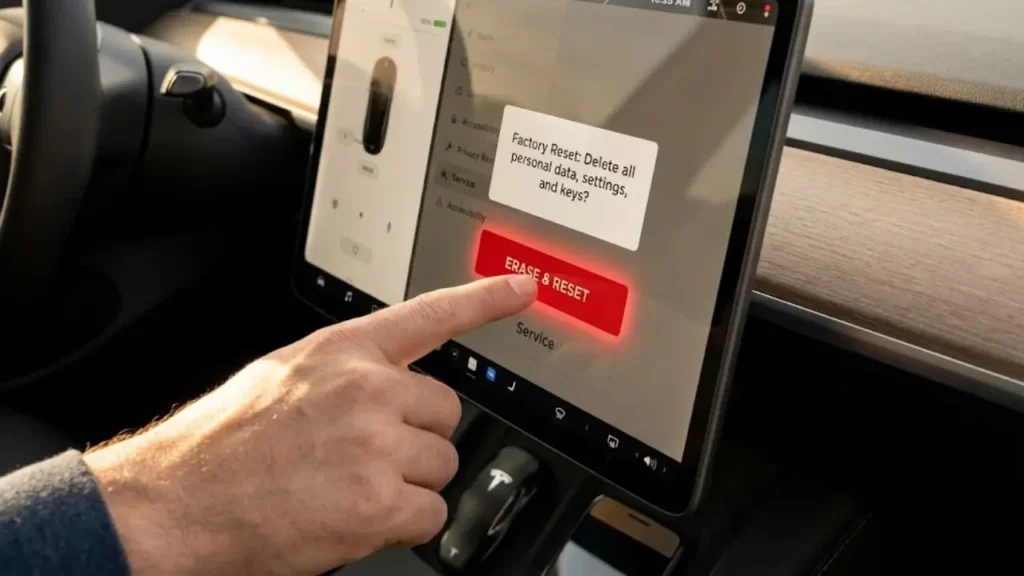
Once you have manually cleared the HomeLink and keys, it is time for the deep clean. This process will delete personal data Tesla Model 3 or Model Y permanently, restoring the software to the state it was in when it left the factory.
Whether you drive the compact sedan or the larger SUV, the operating system is identical. As we highlighted in our Tesla Model 3 vs Model Y comparison, both vehicles share the same MCU (Media Control Unit) interface, so these steps apply universally.
- Tap the Car Icon (Controls) on the bottom left.
- Tap Service in the menu.
- Scroll down until you see Factory Reset.
- Tap it. A warning pop-up will appear listing everything that will be erased (Saved Addresses, Music Logins, Driver Profiles, etc.).
- Tap Confirm.
Wait! Do You Know Your Password?
This is where 50% of sellers get stuck. You cannot just tap “Confirm” and walk away. To prevent thieves from wiping stolen cars, Tesla requires authentication.
After you tap Confirm, the screen will ask you to enter your Tesla Account Email and Password.
If you have forgotten your password, reset it on the Tesla App on your phone before you drive to the dealership. You need an active internet connection (Premium Connectivity or Wi-Fi) for the car to verify these credentials.
What Happens Next?
Once authorized, the screen will go black. The car will reboot, and the Tesla “T” logo will appear. This process usually takes 2 to 5 minutes.
When it wakes up, you should see the “Select Language” screen, just like a brand-new phone. Do not proceed past this screen. Leave it here for the new owner so they can enjoy the setup experience.
But wait—you aren’t done yet. The car is clean, but it is still legally attached to your digital identity. In the next section, we will cover the final and most important step: Removing the Car from Your App (Ownership Transfer).
Step 4: Remove the Car from Your Tesla Account
Congratulations, the car’s screen is wiped. But in Tesla’s cloud servers, you are still the owner. If the new buyer goes to a Supercharger tomorrow, the bill will be charged to your credit card.
You must perform the “Digital Handover” via the mobile app. This process differs slightly depending on whether you are selling to a private person or a dealership.
- Open the Tesla App on your phone.
- Tap the menu icon (top right) or your profile picture.
- Select “Add / Remove Products”.
- Tap “Remove” on the vehicle you are selling.
- For Private Sale: Enter the new owner’s email address. They will get an invite to claim the car.
- For Dealership/Trade-in: Select “No” when asked if you have a buyer’s email. You may need to upload a photo of the bill of sale or trade-in document to finalize the removal.
Troubleshooting App Connection
Sometimes, the app might be slow to update or fail to process the removal if the car is offline. Ensure the vehicle has a good LTE signal.
Also, once you remove the car, your Phone Key access is revoked instantly. If you had issues in the past where your phone struggled to connect (as detailed in our Tesla Phone Key Troubleshooting Guide), don’t worry—those glitches are now the new owner’s problem to solve!
Does FSD Transfer? (The Million Dollar Question)
One of the most common questions we get is: “I paid $12,000 for Full Self-Driving. Does it go with the car or stay with me?”
- If you bought FSD outright: Yes, it stays with the car. It adds value to your resale price.
- If you subscribe monthly: No. Cancel the subscription before you transfer the car, or you will keep paying for it.
You have wiped the HomeLink, reset the screen, and removed the app access. You are technically done. But are there any hidden files left? In the final section, we will answer common FAQs about Navigation History and Supercharging Credits.
Crucial Distinction: Soft Reset vs. Factory Reset
We often see sellers making a fatal mistake. They say, “I held down the two scroll wheels, so the data is gone.” Wrong.
It is vital to understand the difference:
- Soft Reset (Reboot): Holding the two scroll wheels merely restarts the screen. It is like restarting your iPhone. Your photos, contacts, and passwords remain.
- Factory Reset: This is found in the Service menu (as described in Step 3). This effectively “formats the hard drive.” It is like buying a new phone. All data is erased.
Rule of Thumb: If the car didn’t ask for your Tesla password, you didn’t factory reset it.
Frequently Asked Questions
No. If you own an older Model S or X (pre-2017) with transferable free supercharging, that perk is tied to the vehicle’s VIN, not your personal data. Resetting the screen will not remove the free charging capability for the new owner.
2. Can I undo a Factory Reset?No. Once you enter your password and confirm, the data is permanently wiped. You cannot recover your Driver Profiles or Trip History.
3. What if I forgot to remove HomeLink before resetting?If you already reset the car but forgot to delete the garage opener, the signal might be gone, but it’s not guaranteed. To be 100% safe, we recommend changing the code on your actual garage door opener at home, which invalidates the signal stored in the car.
For official documentation on ownership transfers, visit the Tesla Account Support Page.
Disclaimer: GreenMount Motors is an independent EV guide. We are not affiliated with Tesla, Inc. Always verify ownership transfer steps with official Tesla support as policies may update.
Pingback: Tesla 12V Battery Warning: Can You Drive? Cost & Replacement Guide (2026) - greenmountmotors.com