
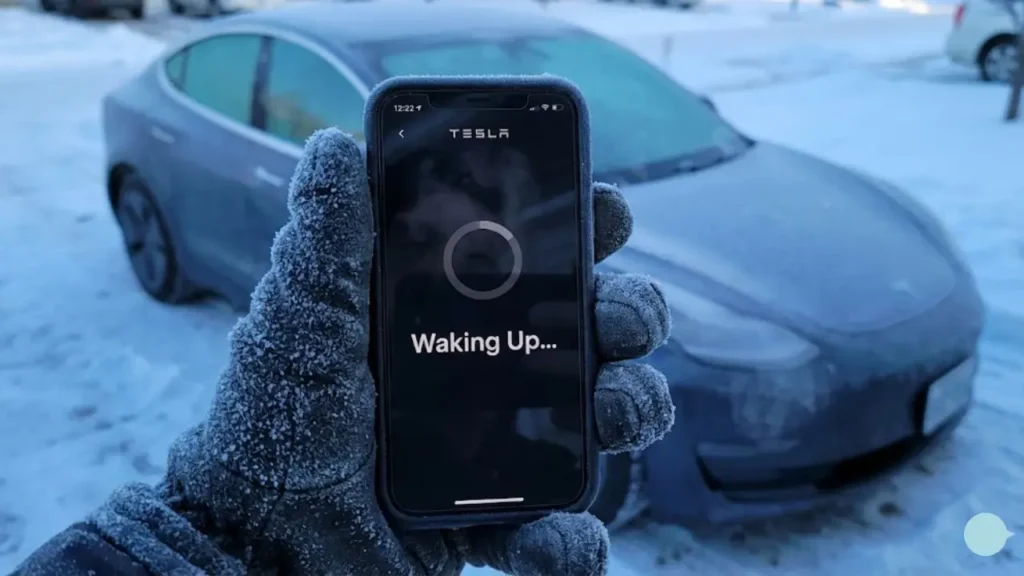
It is a freezing cold morning. You grab your phone to pre-heat your Model 3 while sipping coffee. You open the Tesla app, expecting to see the interior temperature. Instead, you see a spinning grey wheel and the message: “Waking Up…”
You wait 30 seconds. Then a minute. The message changes to “Connecting…” but nothing happens. The climate control won’t turn on, and you can’t check your charge level.
If your Tesla app is stuck on waking up, you are not alone. It is one of the most common complaints in the Tesla community. The good news is that your car is likely fine—it’s just a communication breakdown between your phone, Tesla’s servers, and the vehicle’s sleep mode.
In this guide, we will walk you through the fastest ways to force a connection, check for server outages, and fix the dreaded “spinning wheel of death.”
Step 1: Is It You or Elon? (Check Servers)
Before you restart your phone or run out to the garage, stop. Sometimes, the problem isn’t your car—it’s Tesla.
Tesla’s app relies entirely on cloud servers to talk to your vehicle. If those servers go down (which happens a few times a year), no one can connect.
Visit DownDetector (Tesla Status). If you see a huge spike in reports in the last hour, put your phone down. There is nothing you can do but wait for Tesla engineers to fix the outage.
Step 2: The “Airplane Mode” Shock
If the servers are fine, the issue is likely a “stuck” network request on your phone. The app keeps trying to use an old, expired connection token instead of asking for a new one.
The 10-Second Fix:
- Force close the Tesla app completely (swipe it away).
- Turn on Airplane Mode on your phone.
- Wait 5 seconds.
- Turn Airplane Mode OFF.
- Re-open the Tesla App.
This forces your phone to re-establish a fresh link with the cellular tower and Tesla’s API. In 60% of cases, the status will jump from “Connecting” to “Parked” instantly.
Is Your Car Sleeping or Dead?
If the app still spins after the Airplane Mode trick, your car might be in a “Deep Sleep” from which it refuses to wake up remotely. This is normal behavior to save energy, but sometimes the wake-up receiver glitches.
However, if this happens frequently, or if the car is totally unresponsive even when you walk up to it with your key card, it could be a sign that the 12V battery has failed and cut power to the modem. Before you panic, check the symptoms in our guide: Dead 12V Battery vs. Deep Sleep: How to Tell the Difference.
If the battery is fine, why is the car ignoring the app? In the next section, we will explain the science of “Deep Sleep” and give you a Bluetooth trick to force it awake.
Why Does It Get Stuck? (The “Deep Sleep” Explained)
To understand the fix, you need to understand the behavior. When you park your Tesla for more than 15-20 minutes, it enters “Sleep Mode” to preserve battery life. The high-voltage battery disconnects, and the onboard computer goes dormant.
In this state, the car’s LTE modem enters a low-power “listening” mode. When you open the app, Tesla’s server sends a digital “ping” (like a text message) to the car to wake it up.
The Problem: If your car is parked in a concrete garage or an area with spotty cellular coverage, it might miss this “ping.” The app keeps spinning “Waking Up…” because the server is shouting, but the car is effectively wearing earplugs.
This is the same connectivity issue that causes voice assistants to fail. As we discussed in our guide on Fixing Tesla Voice Command Connection Errors, a weak LTE signal is the root cause of many “smart” feature failures.
The Bluetooth Bypass (Force Wake)
If you are at home (or within 30 feet of the car) and the app won’t connect via the internet, you can use a shortcut: Bluetooth.
Your Phone Key uses Bluetooth Low Energy (BLE), which is a direct hardware connection to the car, bypassing the internet entirely.
1. Walk up to the car with your phone.
2. Physically press the door handle just enough to make the car “click” (you don’t need to open the door fully).
3. This physical interaction forces the computer to wake up instantly.
4. Check your app—it should switch to “Connected” within 5 seconds.
Method 3: Clear the App Cache (Android/iOS)
If you are miles away from the car (so Bluetooth isn’t an option) and the “Airplane Mode” trick didn’t work, the Tesla app’s temporary data might be corrupted.
- Sign Out: Go to the profile icon in the Tesla app and sign out. Sign back in. This refreshes your authentication token.
- Reinstall: If that fails, delete the app and reinstall it. Note: You will need your Key Card to re-set up the Phone Key after a reinstall, so don’t do this if you don’t have your card with you!
But what if the car connects, but the connection keeps dropping or is extremely slow? In the next section, we will look at how to reboot the car’s modem remotely (if possible) and fix signal issues.
The “Sentry Mode” Fix (Preventing Deep Sleep)
If you absolutely hate waiting 30-60 seconds for your car to wake up every morning, there is a setting that keeps the car in a “light sleep” mode: Sentry Mode.
When Sentry Mode is active, the car’s computer and cameras remain powered on to monitor surroundings. Because the computer never fully shuts down, the app connects almost instantly (usually in under 5 seconds).
The Trade-off: Keeping Sentry Mode on will drain about 1-2 miles of range per hour (phantom drain). It is up to you to decide if instant app connectivity is worth the extra energy cost.
The “Zombie Car” Scenario (MCU Crash)
Sometimes, the app isn’t the problem, and the connection isn’t the problem. The problem is that your car’s main computer (MCU) has crashed or frozen, even if the car looks like it’s parked normally.
If the app has been spinning for hours and even the Bluetooth key isn’t working perfectly, the car’s brain might be stuck in a loop. You need to physically go to the car and perform a “Two-Scroll Wheel” reboot.
A frozen computer often affects other systems too. If you notice that your app won’t connect AND you previously had issues with the screen lagging or sound cutting out, your infotainment system needs a hard reset. Check our guide on How to Reboot a Frozen Tesla Screen & Fix Audio for the safe way to restart the system.
The Weak Wi-Fi Trap
Another hidden culprit is your home Wi-Fi router.
Imagine your car is parked in the driveway. It catches just 1 bar of your home Wi-Fi—enough to stay connected to the router, but too weak to actually transmit data. The car thinks it has Wi-Fi, so it ignores the strong LTE signal. But since the Wi-Fi is unusable, the app gets stuck in “Connecting…” forever.
Sit in your car. If the Wi-Fi signal is less than 2 bars, go to Wi-Fi Settings, tap your home network, and select “Forget This Network.” It is better to rely on stable LTE than weak Wi-Fi.
So, we have covered server outages, phone glitches, and car settings. But what if none of this works? In the final section, we will wrap up with a summary of when to call Tesla Service and answer the most common FAQs.
When to Contact Tesla Service
If you have tried the Airplane Mode toggle, verified that servers are online, rebooted the car via the scroll wheels, and the app still says “Last seen [X] days ago,” you might have a hardware failure.
The LTE Connectivity Board inside the car can sometimes fail. If your car screen shows “No Connectivity” (a slash through the signal bars) even when you are driving in a city with good coverage, the internal modem is likely dead. This requires a physical replacement by a mobile ranger.
For official troubleshooting steps regarding account syncing or phone key pairing, visit the Tesla Mobile App Support Page.
Frequently Asked Questions
The car is in “Deep Sleep” to save battery. It takes time for the LTE modem to power up, connect to the cell tower, and handshake with Tesla’s server. Weak signal or server lag can extend this process.
2. How do I force my Tesla to wake up?The fastest way is to be near the car and press the physical door handle. The Bluetooth connection bypasses the internet server and wakes the computer instantly. Alternatively, toggling “Airplane Mode” on your phone can refresh the app connection.
3. Does Sentry Mode keep the car awake?Yes. If Sentry Mode is active, the car never enters deep sleep. The app will connect almost instantly, but you will lose about 1 mile of range per hour due to battery drain.
Disclaimer: GreenMount Motors is an independent guide. We are not affiliated with Tesla, Inc. Always ensure your app is updated to the latest version for best performance.