
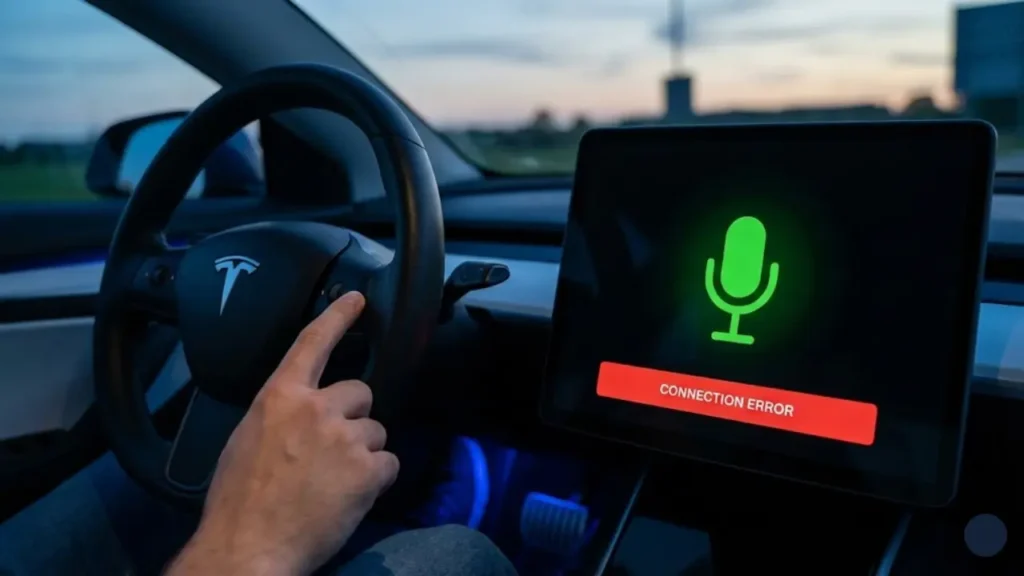
You press the right scroll wheel on your steering wheel. The green microphone icon pops up on the screen. You say, “Navigate to Home.”
And then… nothing.
Or worse, you see the dreaded message: “Connection Error” or “Voice commands unavailable.”
When Tesla voice commands are not working, it transforms your futuristic spaceship into a frustratingly silent box. You are forced to tap through menus while driving, which is exactly what voice control was supposed to prevent.
But before you schedule a service appointment thinking your microphone is broken, here is the truth: In 80% of cases, your hardware is perfectly fine. The issue is almost always a “handshake” failure between your car and Tesla’s servers.
The “Cloud” Reality: Why Connectivity Matters
To fix the problem, you need to understand how it works. Unlike older cars that had a basic list of commands stored on a chip inside the dashboard, Tesla uses Natural Language Processing (NLP).
When you speak, your car doesn’t actually “understand” you instantly. It records your voice, compresses the data, shoots it up to Tesla’s cloud servers via the LTE/5G network, processes it, and sends the command back to the car. All of this happens in milliseconds.
No Internet = No Voice Commands. If your car has poor cellular reception (1 bar or less) or is stuck between Wi-Fi and LTE, the voice system will fail immediately.
Step 1: The Connectivity Diagnostic
Before we try any reboots, look at the top right corner of your touchscreen. Do you see the LTE bars? Or is there a slash through the signal icon?
The “Stuck on Wi-Fi” Bug
This is the most common culprit. When you leave your garage, the car tries to hold onto your home Wi-Fi signal as long as possible. Even when the signal is too weak to transmit voice data, the car hasn’t switched over to LTE yet.
The Fix:
- Tap the LTE/Wi-Fi icon on the top right.
- Turn Wi-Fi Settings > Off manually before you start driving.
- Wait for the “LTE” symbol to stabilize. Try the command again.
Note: If you press the button and don’t even hear the “Ding” activation sound, your issue might not be voice-related at all. It could be a total audio system crash. Check our guide on Tesla Audio Not Working to ensure your speakers and system sounds are active first.
But what if you have full LTE bars, strong internet, and the car still ignores you? That is when we need to use the “Language Toggle Trick”—a secret method that forces the voice module to reload its drivers without restarting the whole car.
The “Language Toggle” Trick (The Secret Fix)
If your LTE signal is strong but the car still refuses to listen, your voice text-to-speech module might be frozen. A simple reboot often doesn’t fix this because it just restarts the screen, not the deep underlying language packs.
Here is the trick that Tesla Mobile Service technicians often use—it forces the system to delete and re-download the voice configuration.
- Park your car safely (P).
- Go to Controls > Display > Voice Recognition Language.
- Change the language from English (US) to English (UK) (or any other language).
- The screen will briefly refresh or reboot. Wait for it to settle.
- Now, switch it back to English (US). Try a voice command immediately.
This action forces the car to “fetch” fresh driver data from the server, often clearing out the “Connection Error” bug instantly.
The Classic Scroll Wheel Reset
If the language toggle didn’t work, we have to go back to basics. The infotainment system is essentially a computer, and sometimes it just needs a restart to clear the cache.
How to do it properly:
- Hold down both scroll wheels on the steering wheel.
- Keep holding until the screen turns black (ignore the audio cutting out).
- Release when you see the white Tesla “T” logo.
Once the system reboots (about 1-2 minutes), wait for the LTE bars to appear before testing the microphone button.
Important: Voice commands for navigation and media often require an active data connection. If your trial has expired, you might need to check the Tesla Premium Connectivity Subscription status, as standard connectivity has limitations on voice features over cellular networks.
Is Your System Unstable?
If you find yourself needing to reboot your Tesla multiple times a week just to keep voice commands or the screen working, this could be a symptom of a deeper power issue. A failing auxiliary battery can cause voltage drops that glitch out the infotainment computer.
Before assuming your computer is broken, rule out the cheap fix first. Read our guide on the Tesla 12V Battery Replacement & Symptoms to see if your battery is the hidden culprit.
But what if the software is fine, and the microphone itself is physically broken? In the next section, we will use a clever “Bug Report” trick to test your hardware without tools.
Hardware Test: Is My Microphone Dead?
You have reset the screen and toggled the language, but the car still ignores you. Now we need to figure out: Is the Tesla software glitching, or is the physical microphone actually broken?
You don’t need to take the car apart to find out. You just need to use the “Bug Report” trick.
The “Bug Report” Diagnostic
Tesla has a built-in feature to send feedback to engineers. We can use this to test the mic input path.
- Press the right scroll wheel button.
- Say clearly: “Bug Report. Voice commands not working.”
- Watch the screen carefully.
The Verdict:
- If you see “Thank you for your feedback” (or a saved icon): Good News! Your microphone hardware is working perfectly because the car heard and processed the “Bug Report” phrase. The issue is definitely a software/connectivity bug.
- If nothing happens: If the car doesn’t acknowledge the phrase at all, your physical microphone (located in the overhead console) might be disconnected or broken.
Physical Maintenance: Dust & Debris
Sometimes, the problem isn’t the software or the mic, but the button itself. The right scroll wheel is used constantly for Autopilot and cruise control.
Compressed Air Trick: Dust and lint can get trapped inside the scroll wheel mechanism, making the “press” register intermittently. Use a can of compressed air to blow out the gaps around the right scroll wheel. It sounds simple, but it fixes “unresponsive button” issues surprisingly often.
The Last Resort: Factory Reset
If the “Bug Report” test showed that your mic is working (it heard you), but the car still won’t execute navigation or media commands, your local user profile might be corrupt.
If you are out of warranty or just want to avoid a service center visit, you can try a full system wipe. This clears all cache, bad driver data, and user settings.
Warning: This deletes everything—your seat positions, Homelink, and saved locations. Before you push that button, read our step-by-step guide on How to Factory Reset Your Tesla to ensure you do it safely and correctly.
If even a factory reset doesn’t bring your voice commands back, you are likely looking at a hardware replacement for the overhead console or the computer. In the final section, we will list the most useful voice commands (so you know what you are missing) and answer common FAQs.
Is It Just You? (Server Outages)
Before you tear your hair out, remember that Tesla’s voice processing happens on their servers. If Amazon Web Services (AWS) or Tesla’s own servers go down, nobody’s voice commands will work.
If you see “Network Error” despite having full LTE bars, check online forums (like Reddit or Tesla Motors Club) or Downdetector. If others are reporting the same issue, just wait a few hours. No amount of rebooting will fix a server crash.
Bonus: Top 10 Commands You Should Know
Once you get your system working again, don’t limit yourself to just “Call Mom.” Here are the most useful commands that keep your eyes on the road:
- “My butt is cold” (Turns on seat heater).
- “Fold mirrors” (Great for tight spaces).
- “Open charge port” (Hands-free arrival).
- “Set temperature to 70 degrees” (Precise climate).
- “Wipers Max” (For sudden downpours).
- “Open Glovebox” (Since there is no physical button).
- “Send a text to [Name]” (Dictation).
For a complete list of capabilities, check out the Official Tesla Voice Commands Guide.
Frequently Asked Questions
Generally, basic voice commands (like “Open Glovebox”) work with standard connectivity. However, commands that require data search (like “Play [Song Name]” or “Navigate to [Business Name]”) often work faster and more reliably with Premium Connectivity or Wi-Fi.
2. Why does it say “Connection Error” when I have full signal?This is often a “Language Pack” glitch. The car thinks it has lost the ability to process speech. The fix is to toggle the language setting from English (US) to English (UK) and back again to force a reload.
3. Can I use voice commands offline?Mostly, no. Tesla’s system is cloud-based for accuracy. Without an internet connection (LTE or Wi-Fi), the car cannot process complex requests.
Disclaimer: GreenMount Motors is an independent guide. We are not affiliated with Tesla, Inc. Troubleshooting steps are based on community findings and official manuals.
Pingback: Tesla Trunk Won't Close? Fix the "3 Beeps" & Reset Latch (2026) - greenmountmotors.com