
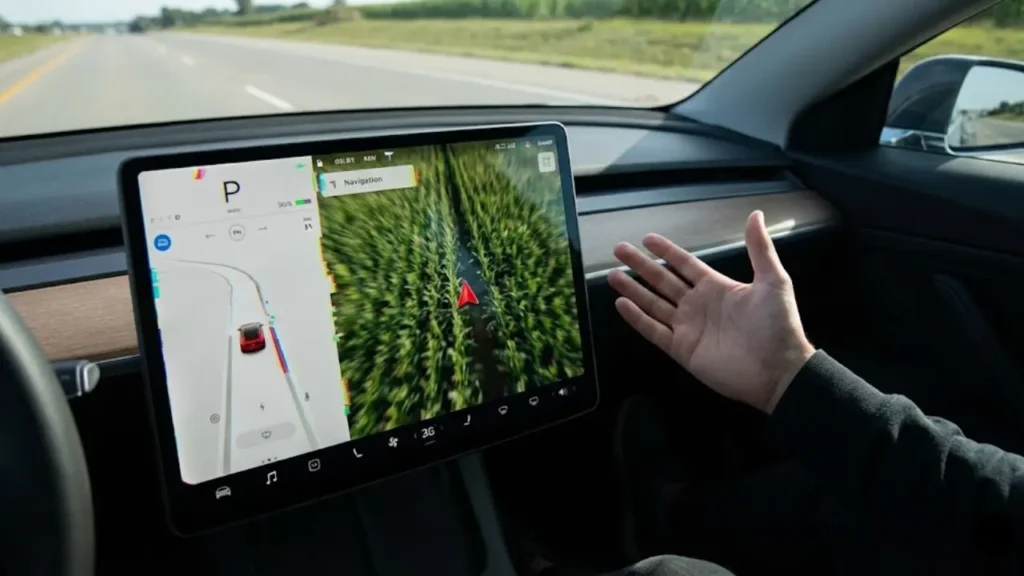
You are driving down the highway at 70 mph. You glance at your screen, and according to the map, your Tesla is currently floating in the middle of a lake or driving through a cornfield three miles away.
The red arrow is frozen. The “Estimated Arrival Time” hasn’t moved in 20 minutes. And worst of all, Autopilot refuses to engage because it doesn’t know the speed limit.
If your Tesla GPS is stuck or the navigation is frozen, it is more than just a minor annoyance—it is a functionality crisis. Your Tesla relies on GPS data for everything from Range Estimation (Trip Planner) to Full Self-Driving (FSD) features.
In this guide, we will move from simple reboots to “Pro-Level” diagnostic tricks to get your car back on the map.
When the GPS is desynchronized, do not use Autopilot or FSD. The car may not know the correct speed limit or upcoming ramp geometry, leading to dangerous phantom braking or sudden swerves.
Why Is My Tesla Navigation Frozen?
The GPS module in your Tesla is constantly triangulating signals from satellites. However, the software that renders this position onto your screen (the MCU) can sometimes freeze due to a memory cache overload or a software bug.
This is often a symptom of a larger system lag. If your map is frozen AND your music is stuttering or the screen feels slow to respond, the entire infotainment computer might be crashing. In that case, check our guide on Tesla Screen Freeze & Audio Fixes for a broader system troubleshooting approach.
Fix #1: The “Force Navigation” Trick
Before you reboot the whole car, try this simple software nudge. Sometimes, the navigation system just needs a “New Target” to wake up its sensors.
📍 The Trip Planner Refresh
- Open the Navigation bar.
- Enter a destination that is far away (e.g., a Supercharger in another state).
- Let the car calculate the route.
- Once the route loads, Cancel it immediately.
This forces the GPS module to actively ping satellites for a fresh lock, which often snaps the red arrow back to your actual location.
Fix #2: The Scroll Wheel Soft Reset
If the “Force Navigation” trick didn’t work, the visual interface is likely stuck. You need to restart the screen.
You can do this while driving (the car will continue to drive and steer manually, but you will lose the speedometer and turn signal sounds for a minute).
- Press and hold both scroll wheels on the steering wheel.
- Hold for about 10 seconds until the screen turns black.
- Wait for the Tesla “T” logo to reappear.
But what if you reboot, and the car still thinks you are in the wrong city? That means the issue isn’t the screen—it’s the GPS cache. In the next section, we will show you how to perform a “Deep Power Cycle” to clear the satellite data.
Fix #3: The “Deep Sleep” Power Cycle
If the soft reset failed, your GPS module might be holding onto corrupt cache data. A simple screen restart doesn’t cut power to the GPS antenna, but a “Power Cycle” does.
How to do it correctly (Do not skip the waiting part):
- Park the car safely.
- Go to Controls > Safety > Power Off.
- The car will shut down. The screen will turn off, and the HVAC will stop.
- Wait for at least 2 to 5 minutes. Do not touch the brake pedal, open the door, or tap the screen. This time is required for the electrical systems to fully discharge.
- Press the brake pedal to wake the car back up.
If your GPS is frozen, you will likely notice that your mobile app also fails to update the car’s location properly. This connectivity issue is similar to the “spinning wheel” glitch we covered in our guide on Tesla App Stuck on Waking Up. A power cycle often fixes both the GPS and the app connection simultaneously.
Fix #4: The “Wheel Config” Hack (The Pro Secret)
If you have tried everything and the red arrow is still stuck, this is the trick that works 99% of the time. It is a “force reboot” for the driving visualization computer.
By telling the car you have changed your wheels, the computer is forced to delete its current sensor calibration data and restart the entire Autopilot/Navigation suite from scratch.
- Go to Controls > Service > Wheel & Tire Configuration.
- Change your wheel size to a different option (e.g., if you have 18″ Aero wheels, select 19″ Sport).
- Tap Confirm. The screen will go black and the system will reboot deeply.
- Once it restarts, the GPS should be working.
- Important: Repeat the process to switch back to your actual correct wheel size so your speedometer remains accurate.
This trick is far more effective than a standard scroll-wheel reset because it rebuilds the vehicle’s configuration file.
But what if the GPS works but shows you drifting sideways? Or if the map data itself looks old? In the next section, we will cover Camera Calibration and Map Updates.
Fix #5: Recalibrate the Cameras
Sometimes, the GPS module is working fine, but the car’s vision is confused. If the cameras and the GPS data disagree on your position (e.g., the GPS says you are on the road, but the camera sees a barrier), the navigation icon might jump around or drift sideways.
This is common after a software update or windshield replacement. You can force the car to relearn its environment.
- Go to Controls > Service > Camera Calibration.
- Tap Clear Calibration.
- The Autopilot features will be temporarily disabled.
- Drive on a highway with clear lane markings for 20-50 miles. The system will recalibrate and realign the GPS overlay.
Check Your Maps: Are You Driving on a “Ghost Road”?
If your GPS works in the city but freezes when you enter a new subdivision or highway extension, your on-board map data might be outdated.
Unlike Google Maps on your phone which streams data live, Tesla stores map data locally on the hard drive. These maps need to be updated periodically via Wi-Fi.
- Go to Software.
- Look for “Navigation Data” under the vehicle specs.
- If there is an update pending, connect to strong Wi-Fi to download it. Note: Navigation updates are huge (5GB+) and can take hours.
The Hidden Culprit: Voltage Drops
If you find that your GPS freezes specifically when you are stopped at a traffic light, or when you first start the car in the morning, it might not be a software bug at all.
The GPS antenna requires a steady stream of power. If your auxiliary battery is failing, it can cause voltage fluctuations that momentarily “blind” the GPS module.
This is a classic early warning sign of a dying battery. Before you pay for a new GPS computer, check the health of your low-voltage system. Read our guide on Tesla 12V Battery Replacement Cost & Symptoms to rule out power issues.
If the calibration is clear, the maps are updated, and the battery is fresh, but the GPS is still broken, you might have a hardware failure. In the final section, we will discuss the dreaded “GPS Antenna Replacement” and answer common FAQs.
Hardware Failure: The GPS Antenna
If you have performed the soft reset, the deep sleep power cycle, the wheel configuration hack, and recalibrated the cameras, and your location is still stuck, you are likely dealing with a physical hardware failure.
Common Hardware Issues:
- Loose Connector: The GPS antenna connection behind the glovebox or near the rearview mirror (depending on the model) can vibrate loose over time.
- Water Damage: If the windshield was recently replaced or if there is a seal leak, water can corrode the GPS module.
- Computer Fault: In rare cases, the GPS receiver on the main computer board (MCU) fails, requiring a full computer replacement.
Warranty & Repair Costs
If your car is under the Basic Vehicle Limited Warranty (4 years/50,000 miles), this repair is free. If you are out of warranty:
- GPS Antenna Replacement: ~$200 – $350 (Parts & Labor).
- Coaxial Cable Fix: ~$150 (If it’s just a loose wire).
To get an official diagnosis, schedule an appointment via the app. You can verify appointment types on the Tesla Service & Repair Support Page.
Frequently Asked Questions
The red arrow freezes when the visualization software crashes or the GPS cache becomes corrupt. A “Scroll Wheel Reset” usually unfreezes the screen, while entering a new destination into the Trip Planner can force the GPS to re-lock satellites.
2. Does GPS failure affect Autopilot?Yes. Tesla’s Autopilot and FSD rely on GPS to know speed limits, upcoming curves, and off-ramps. If the GPS is stuck, Autopilot features may be unavailable or behave unpredictably. Do not use Autopilot until the GPS is fixed.
3. What is the “Wheel Config” trick?Changing the wheel size in the Service menu forces the car to completely rebuild its configuration files and restart the driving computer. It is a more powerful reset than the standard reboot and fixes deep-seated GPS bugs.
Disclaimer: GreenMount Motors is an independent guide. We are not affiliated with Tesla, Inc. Always follow official safety warnings when operating your vehicle.
Pingback: Tesla Autopilot Suspension Reset: Can You Fix "5 Strikes" Jail? (2026) - greenmountmotors.com