
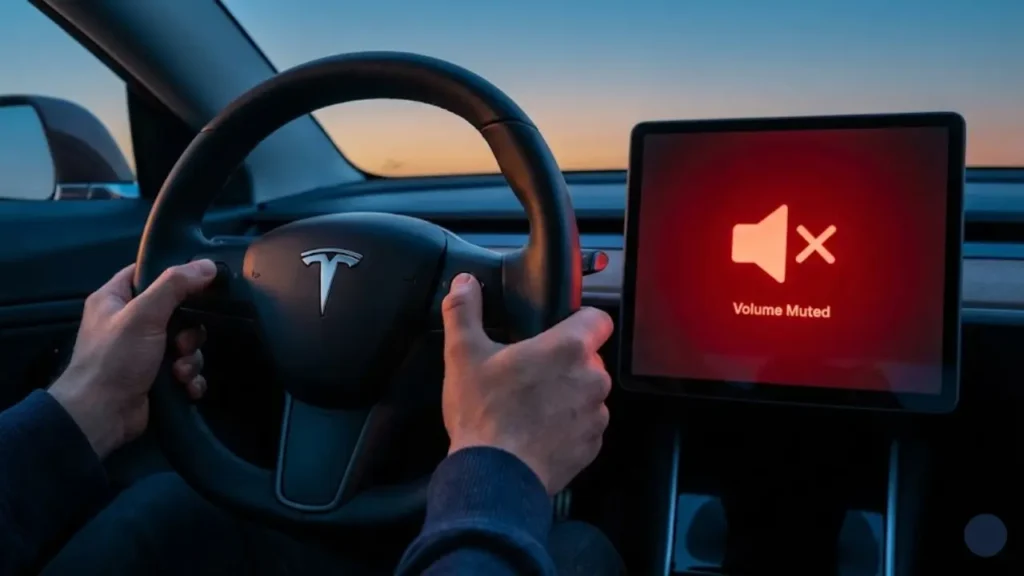
You hop into your Model 3 or Model Y, ready for your morning commute. You tap Spotify, but there is silence. You turn up the volume—nothing. Then you hit the turn signal, and realize the clicking sound is gone too.
It is eerie, frustrating, and honestly, a little scary.
If your Tesla audio is not working, do not panic. You likely haven’t blown a speaker or fried an amplifier. In 90% of cases, this is a simple software glitch where the audio driver failed to load during the car’s “wake up” sequence. The fix usually takes less than 2 minutes.
⚡ Fast Fix: The Soft Reboot
This fixes most glitches (frozen screen, no sound, GPS stuck) and can be done while driving:
- Press and hold both scroll wheels on the steering wheel simultaneously.
- Keep holding for about 10 seconds until the screen turns black.
- Release the buttons. The Tesla “T” logo will appear.
- Wait ~30 seconds for the system to restart. Audio should return.
Why Did the Sound Disappear?
Unlike a traditional car where the radio is a separate unit, your Tesla’s audio system is deeply integrated into the main MCU (Media Control Unit). The sounds for your turn signals, blind spot warnings, and parking sensors are all artificial—generated by the computer and played through the speakers.
If the software “hiccups,” it cuts the audio feed to protect the hardware. This often happens after:
- A recent Over-The-Air (OTA) software update.
- Switching quickly between Bluetooth and Streaming.
- Voltage Fluctuations: If your auxiliary battery is weak, the car may disable non-essential systems (like the amplifier) to save power.
If you find that your audio cuts out frequently on cold mornings, it might be an early sign of a failing low-voltage battery. Check our guide on the Tesla 12V Battery Warning to rule out power issues.
Method 2: The “Deep Sleep” Power Cycle (Better Than Reboot)
If the scroll wheel reset didn’t work, don’t worry. That only restarts the screen. Sometimes, the audio amplifier itself is stuck in a “zombie state” and needs a full power cut to reset.
This method performs a hard reset on the car’s subsystems:
- Park the car safely and close all doors and windows.
- On the screen, go to Controls > Safety > Power Off.
- The car will shut down. Do not touch anything (brake pedal, door, screen) for at least 2 minutes. This waiting period is critical.
- After 2 minutes, press the brake pedal to wake the car up.
This “Power Cycle” often brings the sound back when a standard reboot fails. But what if you have sound, but it’s crackling, or only the Bluetooth isn’t working? We cover those specific fixes in the next section.
Scenario 2: Bluetooth Connected, But No Sound
This is a classic “handshake” error. Your phone says it’s playing Spotify/Apple Music, the car says it’s connected, but the speakers are dead silent.
The Fix: The “Forget & Re-pair” Method
Simply turning Bluetooth off and on usually isn’t enough because the corrupted connection profile remains saved. You need a clean slate:
- On the Car: Go to the Bluetooth menu, find your phone, and tap “Forget Device.”
- On your Phone: Go to Bluetooth settings, find your Tesla, and tap “Forget This Device.”
- Re-pair: Start the pairing process from scratch as if it were a new phone.
If you are having trouble re-connecting, refer to the Tesla Official Bluetooth & Phone Key Guide for device-specific troubleshooting steps.
Scenario 3: Crackling, Popping, or Static Noise
If your Tesla speakers are crackling (especially in the Model 3), it is often more annoying than having no sound at all. This can sound like a blown speaker, but don’t order a replacement part just yet.
Cause A: The “Immersive Sound” Bug
Tesla’s software tries to simulate surround sound using a feature called “Immersive Sound.” Occasionally, the processing gets overloaded, causing digital static.
Try this: Go to Audio Settings > Immersive Sound and turn it to OFF or Standard (if it was on High). If the crackling stops, it is a software bug that will likely be fixed in the next OTA update.
Cause B: Loose Connectors (Hardware)
In early Model 3 units, a loose connection in the trunk amplifier or the A-pillar tweeter is common. If the sound cuts out only when you hit a bump, it is almost certainly a loose wire, not a software glitch.
Quick Check: Is “Joe Mode” Silencing You?
Many owners complain that their turn signals or parking chimes are “too quiet” or barely audible. Before you assume the system is broken, check if you accidentally enabled Joe Mode.
Named after a Tesla owner who complained the chimes woke up his kids, this mode lowers the volume of non-critical alerts (indicators, parking sensors).
To fix: Go to Controls > Safety > Joe Mode and toggle it OFF to restore full volume.
But what if you have tried the reboots, the Bluetooth reset, and checked the settings, and there is still zero sound? Now we need to look at the hardware—specifically the amplifier and the wiring.
Hardware Check: Is My Amplifier Dead?
If you have tried every reboot method and are still greeted by silence, you might be dealing with a hardware failure. In the Model 3 and Model Y, the issue usually stems from the Power Amplifier located in the rear trunk.
1. The “E-Fuse” Reality (Don’t Look for a Fuse Box)
Many owners ask: “Where is the radio fuse in a Tesla Model 3?”
Here is the truth: There isn’t one. Unlike old cars with plastic fuses you can pull out, modern Teslas use E-Fuses (Electronic Fuses). These are software-controlled breakers.
If the amplifier draws too much power (due to overheating or a short), the computer trips the E-Fuse to cut power. You cannot physically replace it. The only way to reset an E-Fuse is to let the car go into “Deep Sleep” (as described in Part 1) for at least an hour.
2. The Loose Trunk Connector (Common DIY Fix)
Sometimes, the issue isn’t a blown amp, but a loose plug. The amplifier is tucked behind the carpet on the right-hand side of the trunk (boot).
- The Symptom: Audio cuts out when you hit a bump or turn a sharp corner.
- The Check: Peel back the trunk liner slightly on the right side. Ensure the grey/black harness plugs connected to the metal amp box are seated firmly. Push them in until you feel a click.
The Nuclear Option: Factory Reset
If the hardware looks fine but the sound is still gone, your audio drivers might be deeply corrupted. Before you book a service appointment (which could cost $150+ for diagnosis), there is one last step: The Factory Reset.
This will erase everything: your driver profiles, saved WiFi passwords, Homelink settings, and radio presets. It restores the car to the state it was in when it left the factory.
Because this process wipes your data, you should only do it if absolutely necessary. Make sure you know exactly what will be deleted and how to prepare. We have a dedicated walkthrough on How to Factory Reset Your Tesla Safely that guides you through the process.
To perform the reset:
- Park the car.
- Go to Controls > Service > Factory Reset.
- Confirm and wait 5-10 minutes for the system to scrub and reboot.
If the audio still doesn’t work after a factory reset, you officially have a dead amplifier or computer module. At this point, opening a Tesla Service request is your only option.
But wait, does a dead amp mean an expensive repair? In the final section, we will cover warranty costs and answer the most frequently asked questions about Tesla audio.
Warranty & Repair Costs: When DIY Fails
If you have gone through the “Deep Sleep” cycle and the Factory Reset, and your car is still silent, the issue is internal. It is time to open the Tesla App.
Is it Covered?
Yes. The audio system (screen, amplifier, speakers, and wiring) is covered under the Basic Vehicle Limited Warranty (4 years or 50,000 miles). If your car is within this range, the repair—even a full computer replacement—is free.
Out of Warranty Costs
If you are past the warranty period, here are the estimated costs based on community reports:
- Amplifier Replacement: $600 – $900 (Parts & Labor).
- MCU (Computer) Issue: $1,500 – $2,200.
- Speaker Replacement: $150 – $250 per speaker.
To schedule a repair, use the mobile app or visit the Tesla Service & Maintenance Support Page for more details on appointment types.
Frequently Asked Questions
The turn signal clicking sound is artificial and played through the speakers. If the audio driver crashes, the clicking stops too. A “Two-Scroll Wheel” reboot usually fixes this instantly.
2. Where is the radio fuse in a Tesla Model 3?Modern Teslas do not have physical fuses for the audio system. They use E-Fuses (electronic breakers). If the system overloads, the car cuts power via software. To reset it, you must let the car sleep (Power Off) for at least 30-60 minutes.
3. Will a soft reset delete my settings?No. Rebooting the screen by holding the two scroll wheels is safe. It only restarts the operating system (like restarting a phone). Your driver profiles, seat positions, and saved addresses will remain safe.
Disclaimer: GreenMount Motors is an independent guide. We are not affiliated with Tesla, Inc. Always follow official safety protocols when troubleshooting vehicle electronics.
Pingback: Tesla Voice Commands Not Working? Fix Connection Error & Mic (2026) - greenmountmotors.com
Pingback: Tesla GPS Stuck or Frozen? 4 Ways to Fix Wrong Location (2026) - greenmountmotors.com