
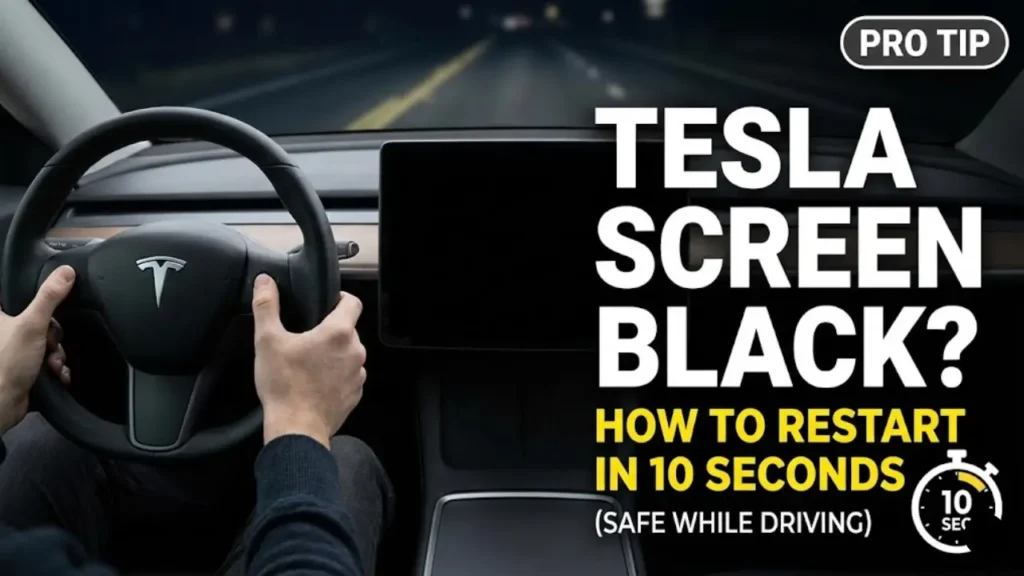
If you are driving and your Tesla screen has suddenly gone black, frozen, or become unresponsive, do not pull over on a busy highway. Your car is still fully operational. You can perform a restart while the vehicle is in motion.
- Step 1: Keep driving normally. Do not take your hands off the steering wheel.
- Step 2: Press and hold both scroll wheels on the steering wheel simultaneously.
- Step 3: Keep holding them for about 10 seconds until the main screen turns completely black.
- Step 4: Release the scroll wheels once the black screen appears. After a few seconds, the silver Tesla “T” logo will appear, and the system will reboot.
This procedure is officially called a scroll wheel reset or a soft reboot. It forces the infotainment computer (MCU) to reload its operating system without cutting power to the drivetrain, motor, or brakes.
Is it Safe to Do This While Driving?
Yes. This is the most common fear for new owners. When the screen goes black, it feels like the car has died, but the driving mechanics are on a completely separate isolated circuit.
What Still Works During a Restart:
The accelerator, brakes, and steering remain 100% active. Your turn signals will still work externally, though you will not hear the clicking sound inside the cabin. The airbags and safety systems remain armed.
However, you will temporarily lose access to the speedometer, blind-spot cameras, and GPS navigation instructions for about 60 to 90 seconds while the system reloads. We recommend maintaining a steady speed and staying in your lane until the interface returns.
Method 2: The Full Power Cycle (Hard Reset)
If the scroll wheel method did not bring your screen back to life, or if the screen is on but the touch is unresponsive, you need to perform a full system power cycle. Think of this as shutting down your laptop completely rather than just restarting it.
Unlike the soft reset, this procedure cuts power to various modules. You must be in Park (P) and in a safe location. Do not attempt this at a traffic light or stop sign.
This method is particularly effective if your screen glitched immediately after waking the car from a long sleep duration. If you frequently leave your vehicle for extended periods, check our Electric Car Long Term Parking Guide to prevent these wake-up errors in the future.
The 5-Minute Procedure
Why Did My Screen Go Black? (The 3 Main Causes)
If the restart worked, you likely just encountered a temporary software glitch. However, if the screen is still dead, you are likely facing a hardware failure. Here is how to identify the culprit.
Did you recently install a software update? Often, the firmware update does not fully clear the cache, causing the screen to freeze or go black upon the first drive. A simple scroll wheel reset usually resolves this.
Your car has two batteries: the massive one under the floor (for driving) and a small 12V/16V battery (for electronics). If the small battery dies, the screen dies.
The Silent Killer: Dead 12V Battery
This is the most common reason for a persistent black screen in Teslas older than 3 years. Unlike the main battery, the low-voltage battery is a standard consumable part. If you see a warning on your app about “Low Voltage” or if your interior lights are flickering, this is your issue.
Replacing this is relatively inexpensive, but it is critical. You can check the expected prices for your specific model in our breakdown of Tesla Battery Replacement Costs.
The “eMMC” Chip Failure (Older Models)
If you drive an older Model S or Model X (built before 2018), your black screen might be due to a burnt-out memory chip. The NHTSA (National Highway Traffic Safety Administration) pressured Tesla to extend the warranty for these specific “MCU1” units.
Advanced Troubleshooting: Is the Computer Dead?
If the hard reset failed, you need to determine if the issue is just the display panel (screen failure) or the entire vehicle computer (MCU failure).
Open your Tesla mobile app and stand near the car. Look at the connection status:
- Status “Connected”: Good news. The computer is alive. The issue is likely just a broken backlight or display connection.
- Status “Last seen X hours ago”: Bad news. The computer is completely offline. This usually points to a dead 12V battery or MCU failure.
The Charge Port Light Test
Another way to verify the car’s heartbeat is to press the charge port door. If the light does not turn on at all, the low-voltage system is dead. If it flashes red or amber, you can decode these error signals using our guide on Tesla Charge Port Light Meanings.
When to Visit the Service Center
If you have tried the Scroll Wheel Reset, the Power Cycle, and checked the 12V battery, but the screen remains black, it is time to open a service ticket. For detailed DIY procedures, verify with the official Tesla Do It Yourself Guides.
Frequently Asked Questions
Yes. The driving mechanics (accelerator, brakes, steering) are on a separate system from the infotainment screen. You can safely drive the car, use turn signals, and park.
No. A scroll wheel reset (soft reboot) or a power cycle does not delete any personal data, seat positions, or driver profiles.
If the issue is a dead 12V battery, it costs between $85 and $125 (DIY). If the MCU (Main Computer) has failed and is out of warranty, replacement costs can range from $1,500 to $2,200.
Pingback: Tesla Park Assist Unavailable? Top 3 Fixes & Hardware Check (2026) - greenmountmotors.com
Pingback: Tesla Phone Key Connected But Not Unlocking? 3 Instant Fixes (2026) - greenmountmotors.com
Pingback: Tesla Wireless Charger Blinking Amber? 3 Instant Fixes (2026) - greenmountmotors.com
Pingback: Tesla Sentry Mode Recording But No Video? Fix 0KB & Black Screen (2026) - greenmountmotors.com
Pingback: Tesla Charge Port Latch Stuck? How to Unlock Manually (Emergency Fix) - greenmountmotors.com
Pingback: Tesla Software Update Stuck at 50% or 0%? How to Fix (Complete Guide) - greenmountmotors.com
Pingback: Tesla Tire Pressure Monitoring System Fault? How to Reset & Fix (2025) - greenmountmotors.com
Pingback: Tesla Ownership Transfer Not Working? How to Fix & Claim Your Car (2026) - greenmountmotors.com