
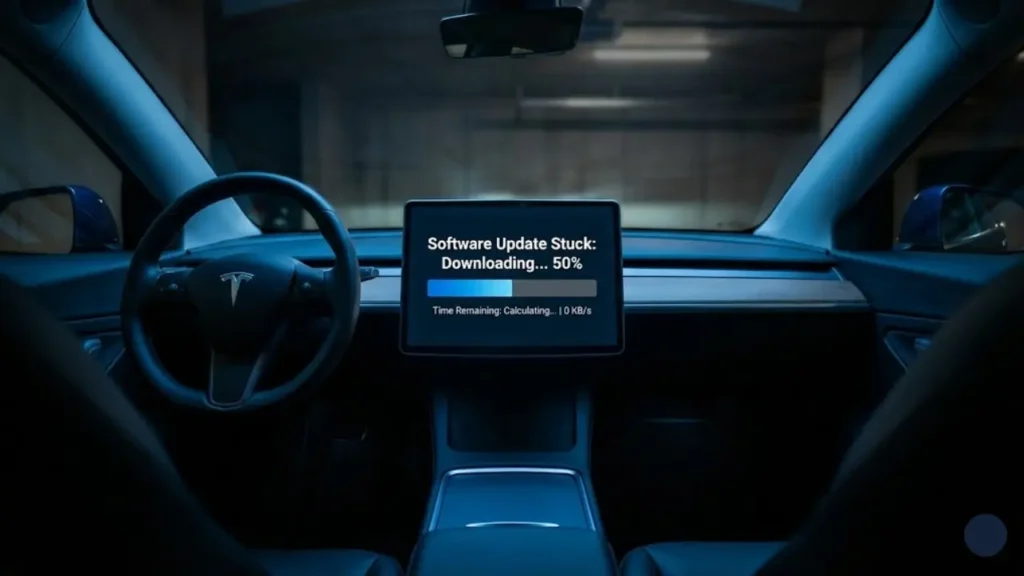
There is no feeling quite like the excitement of seeing that yellow “Software Update Available” notification on your Tesla app. It’s like getting a new phone for free. You rush to connect to Wi-Fi, hit install, and wait.
But then, the progress bar stops. It sits at 50% for an hour. Then two hours. Or maybe it never started and is stuck at 0 KB/s. Panic starts to set in. Is the car broken? Did the computer crash? Can you even drive it to work tomorrow?
Before you call a tow truck, take a deep breath. In most cases, your Tesla software update stuck issue is not a failure—it is a “feature” of how Tesla verifies data. Let’s diagnose exactly what is happening.
You must know the difference before you panic:
1. Downloading (Green Icon): The car is pulling data from Wi-Fi. IT IS SAFE TO DRIVE. Driving will pause the download, but it won’t hurt the car.
2. Installing (Orange Clock Icon): The car is rewriting its brain. DO NOT DRIVE. The car is immobilized for approx 25 minutes. If it is stuck here, read Part 3 of this guide.
Why is it Stuck at 50%? (The “Halfway” Myth)
The most common search query we see is Tesla software update stuck at 50. This drives owners crazy, but there is a technical explanation.
When the bar hits 50%, the “Downloading” phase via Wi-Fi is often actually finished. The car is now moving that massive file from the Wi-Fi module (Gateway) to the main computer (MCU) and verifying the file integrity.
Think of it like downloading a file to a USB stick and then copying it to your hard drive. The 50% mark is where the “Copying” begins. Because the internal bus speed is limited for safety, this step can sit at 50% or 59% for up to 4 hours without failing.
Stuck at 0% or “Calculating…”
If your screen shows Tesla update downloading 0 kb/s, the issue is almost always a “Handshake Failure.”
- The Weak Signal: Your car sees the Wi-Fi name, but the signal strength is too low (1 bar) to start the data transfer.
- The 5GHz Problem: Older Teslas (and some new updates) struggle with 5GHz Wi-Fi bands. They prefer the slower, more stable 2.4GHz band.
Stuck at 100% (Verifying)
This is the final hurdle. The progress bar is full, but the “Install” button won’t appear. This means the cryptographic signature check is happening. If it fails this check (due to a corrupted file), it will hang here forever until you force a reboot.
So, we know why it is happening. Now, how do we force it to finish? In the next section, we will start with the “Soft Fixes”—the safe tricks you can try immediately without technical skills.
Phase 1: The “Soft” Fixes (Try These First)
Before we dive into the advanced “Service Mode” menus, try these three simple overrides. In 90% of cases, the car just needs a gentle nudge to resume the download.
1. The Two-Button Reset
If the download bar hasn’t moved for 30 minutes, the infotainment computer might have frozen the visual display, even if the background process is working.
Is it safe? YES. As long as the update is in the “Downloading” phase (Green Icon), you can safely reboot. NEVER reboot during “Installing” (Clock Icon).
If you are new to this or the screen doesn’t come back on, follow our detailed Tesla Scroll Wheel Reset Guide.
2. The “Forget & Rejoin” Technique
Sometimes you see Tesla update connected to wifi but not downloading. This happens when the car holds onto a “stale” IP address.
- Go to Controls > Wi-Fi.
- Tap your network name and hit “Forget Network”.
- Turn Wi-Fi OFF, wait 10 seconds, then turn it ON.
- Reconnect and enter the password again.
This forces the router to assign a fresh connection path to the car, often unclogging the download pipe.
3. The Mobile Hotspot Override
Your expensive home Mesh Router might actually be the problem. Many modern routers try to force devices onto 5GHz, but Tesla’s Wi-Fi antennas (especially in older Model 3/Y) perform much better on the slower, stable 2.4GHz band.
Disconnect from home Wi-Fi. Turn on your phone’s Personal Hotspot (make sure “Maximize Compatibility” is on if using iPhone) and connect the car to your phone. The change in network source often kickstarts a stuck download instantly.
If you have rebooted, toggled Wi-Fi, and tried a hotspot, and it is still stuck at 0% or 50% for more than 24 hours, the file itself is likely corrupted. You need to delete it and force the car to download it again. To do that, we need to enter the hidden “Service Mode.”
Phase 2: The “Hard” Fix (Service Mode)
If you have waited 24 hours and the bar is still frozen, the download file is likely corrupted (bad hash check). Rebooting won’t fix a broken file. You need to force the car to delete the bad file and download a fresh copy.
We do this using the Tesla Service Mode reinstall software command. This is a hidden menu used by technicians.
Service Mode gives you deep access to the car’s systems. Only follow the steps below. Do not touch other buttons like “Gateway Config” or “Driver Assist Calibration” unless you know exactly what you are doing.
Step 1: How to Enter Service Mode
- Go to Controls > Software on your car screen.
- Press and hold the large text that says “MODEL 3” (or Model Y) for 3 full seconds.
- Release your finger. A password box will appear.
- Type the password: service
- The screen will flash red boundaries. You are now in Service Mode.
Step 2: Force the Reinstall
Once inside, navigate to the “Software” tab on the left menu. Look for a button that says “Software Reinstall”.
- Tap this button. The car will check the server for the latest valid firmware.
- It will essentially “reset” the update process, deleting the partial download and starting fresh.
- Once the download restarts (Green Icon), you can exit Service Mode (Tap “Exit Service Mode” at the top right).
Phase 3: The Official Request (The “Push”)
If you are uncomfortable entering Service Mode, you can ask Tesla to do it remotely. This is called “Pushing the Update.”
1. Open App > Service > Request Service.
2. Choose category: Software & Autopilot.
3. Description: “Software update stuck at 50% for 48 hours. Wi-Fi is good. Please re-push the update.”
Tesla service usually responds within a few hours via chat. They can remotely cancel the stuck download and send a new signal to your car without you lifting a finger.
Now that we have fixed the stuck update, how do we make sure this doesn’t happen next time? In the final section, we will look at the “Hidden Culprits”—like your USB drive and Cabin Overheat Protection.
Prevention: The “USB” & “Battery” Factor
You forced the update this time, but how do you prevent the Tesla software update stuck issue from returning? Check these two hardware culprits.
During an update, the car restarts multiple subsystems. Sometimes, a corrupted or full USB drive (used for Dashcam/Sentry) can cause the infotainment system to “hang” during the boot sequence. If your update is stuck, unplug the USB drive from the glovebox and reboot.
2. Battery & Thermal Conflicts
The car will pause downloads if the battery is below 20% to save energy. Also, if the car is fighting extreme heat, the computer prioritizes cooling over installing.
If you notice your fans running loud while parked, your car might be struggling with temperature management, which blocks the “Install” button. Read our guide on Tesla Cabin Overheat Protection Not Working to ensure your thermal systems aren’t draining the battery needed for the update.
Frequently Asked Questions
Yes. As long as the status is “Downloading” (Green Arrow), you can drive. The download will pause and resume when you connect to Wi-Fi again. However, if the status is “Installing” (Orange Clock), you cannot drive.
2. Does the update drain my battery?A typical update consumes about 1-3% of the battery. However, if the car gets “stuck” awake for 24 hours trying to download, it can drain significantly more. It is best to keep the car plugged in during updates.
3. How long should a Tesla software update take?Downloading: 30 minutes to 2 hours (depending on Wi-Fi speed).
Installing: 25 minutes to 45 minutes.
If it takes longer than 4 hours, follow the reset steps in this guide.